Deliver a project
Run one project through one Link, from the first estimate to the final handover.
1. Set up the project
- Create a project in Link and choose its client, or ask your connected assistant to create it. For a Notion-connected workspace, add it in the copied Projects database.
- Add the dates, the people and the page content.
- Set the status to Draft while the scope is still yours.
Open the project in Link to check its title, dates and page. It stays private until you share it.
2. Send the estimate
- Set the project’s price. In a Notion-connected workspace, use its Price, Estimate, Budget, Quote or Amount property.
- Set the status to Estimate sent.
- Invite the client’s admin and send them the project.
Only Link admins and the client’s admins see the amount. Everyone else sees the project without it.
3. Get approval
The client admin opens the estimate on the project page, asks questions in its comments and chooses Approve estimate. Link sets the status to Estimate approved and emails you. If Notion is connected, the status is written back there too.
Approval works while the status is Draft, Estimate or Estimate sent.
4. Do the work
Set the status to In progress and keep the project page current: decisions, dates, files and next steps. Clients can tick to-dos on the page. In a Notion-connected workspace, those changes are written back to Notion.
Give a large piece of work its own page inside the project. Each page has its own Link and starts private.
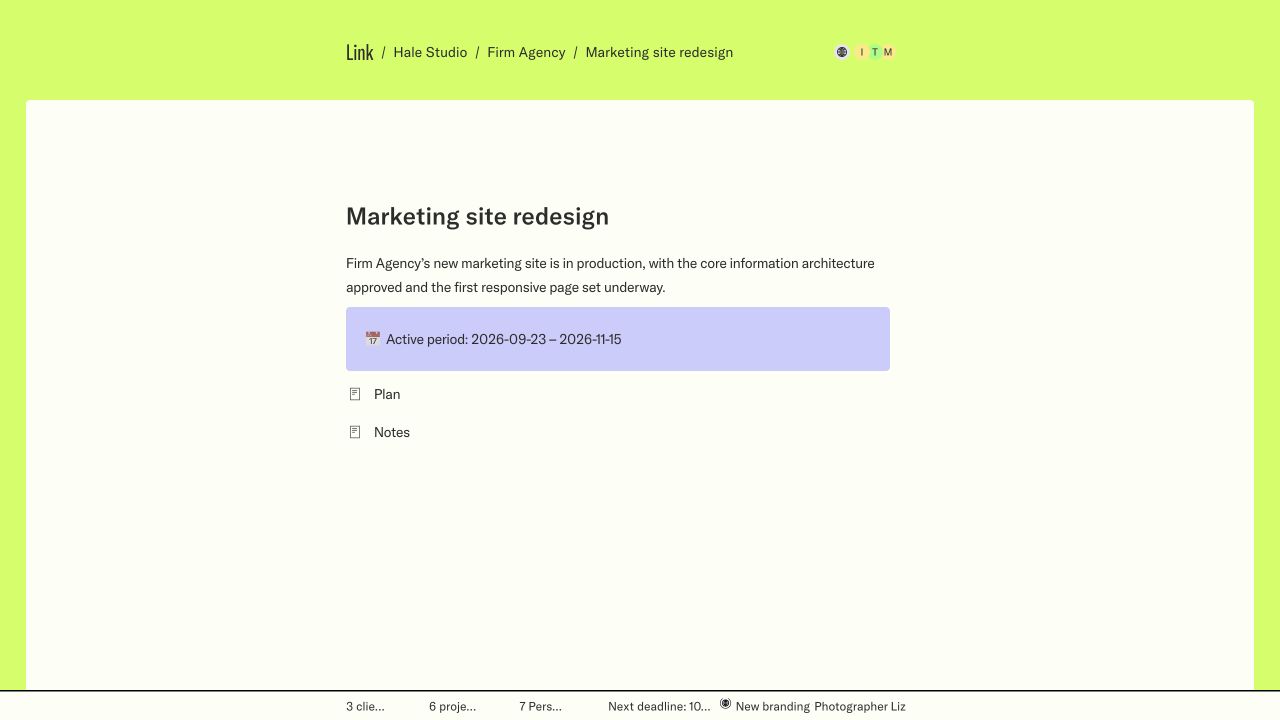
5. Review
Set the status to In review when the client should check the work. For a website, share a site preview the client can comment on.
6. Deliver
Set the status to Delivered and send the client the project’s Link with a line on what was delivered and what happens next. The same page is now the handover.
Set the status to Archived when the client no longer needs it. Archived projects disappear from the client’s portal.
Checklist
- The project belongs to the right client.
- Status and dates are current.
- The client admin can open the project before you send the estimate.
- Every page is private or public as you intend.
- You opened the final Link as the client will see it.
Screens show a sample workspace in Link’s new design, which is rolling out. Inline controls are illustrations; use them in your workspace to make a change.